
🤖 Ghostwritten by GPT 5.4 · Fact-checked & edited by Claude Opus 4.6 · Curated by Tom Hundley
If you use OpenClaw daily, the new openclaw backup create and openclaw backup verify commands in OpenClaw v2026.3.8 are the easiest safety net you can add right now. They let you snapshot your setup before an update, confirm the backup is usable, and keep files named in a way that sorts cleanly by date. For vibe coders, that means less guessing, less panic, and a much better chance of getting back to a working state after something breaks.
That is the real gap this article fills. The release notes and the earlier OpenClaw v2026.3.8: CLI Backup Commands Guide cover what the commands do. This article is about when to use them, how to turn them into a habit, and how to avoid the two most common backup mistakes: saving a backup you never test, and storing a backup where anyone can open it.
One quick reason this matters: the U.S. Cybersecurity and Infrastructure Security Agency (CISA) has long recommended regular backups as one of the most effective ways to reduce recovery pain after incidents or bad changes. And Verizon's annual Data Breach Investigations Report consistently shows human error and misconfiguration remain major causes of outages and exposure. Most disasters are boring, preventable, and fixable—if you have a clean copy.
TL;DR: OpenClaw v2026.3.8 backup commands matter because they make backups simpler to create, easier to sort, and easier to check before you need them.
The headline feature is not just that backups exist. It is that the workflow is finally friendly enough that regular people will actually use it.
Here is the plain-English version:
openclaw backup create makes a backup archiveopenclaw backup verify checks whether that archive looks validThink of it like taking photos before rearranging your house. A full backup is photos of every room. A config-only backup is a close-up of your fuse box, thermostat, and door lock settings. If the problem is in your setup rather than your content, that smaller snapshot is often enough.
The date-sorting improvement sounds small, but it matters. When backup files are named cleanly by year, month, day, and time, your file browser naturally puts the newest one where you expect it. That reduces restore mistakes. When people are stressed, they click the wrong file. Better naming prevents dumb, expensive errors.
| Backup Type | Best For | Size | Speed | When to Use It |
|---|---|---|---|---|
| Full backup | Updates, migrations, risky experiments | Larger | Slower | When you want the most complete recovery point |
| Config-only backup | Settings, integrations, prompts, routing changes | Smaller | Faster | When your main risk is misconfiguration |
| Verified backup | Any important backup | Same as original | Adds a quick check step | When you want confidence the archive is usable |
If you followed the recent platform changes in OpenClaw v2026.3.7-beta.1: Docker Slim & Gemini Flash-Lite, you already know small infrastructure changes can have outsized side effects. Backups are what turn experimentation from scary into manageable.
TL;DR: Your safest routine is simple—create a backup before a change, verify it immediately, then store it somewhere private and findable.
This section is for people who do not live in a terminal window.
Before you touch anything, ask one question: "Am I changing the whole system, or just settings?"
Use a full backup when you are:
Use a config-only backup when you are:
Run the create command from your normal OpenClaw setup location:
openclaw backup createFor settings and config only, use the config-only option:
openclaw backup create --config-onlyYou do not need to overthink the filename. The improved naming in v2026.3.8 sorts properly by date, which is exactly what you want during recovery.
Now run:
openclaw backup verify path/to/your-backup-fileThis is the part people skip, and it is the part that saves the day. A backup you never verify is like a spare key you never tested in the lock.
Good storage locations:
Bad storage locations:
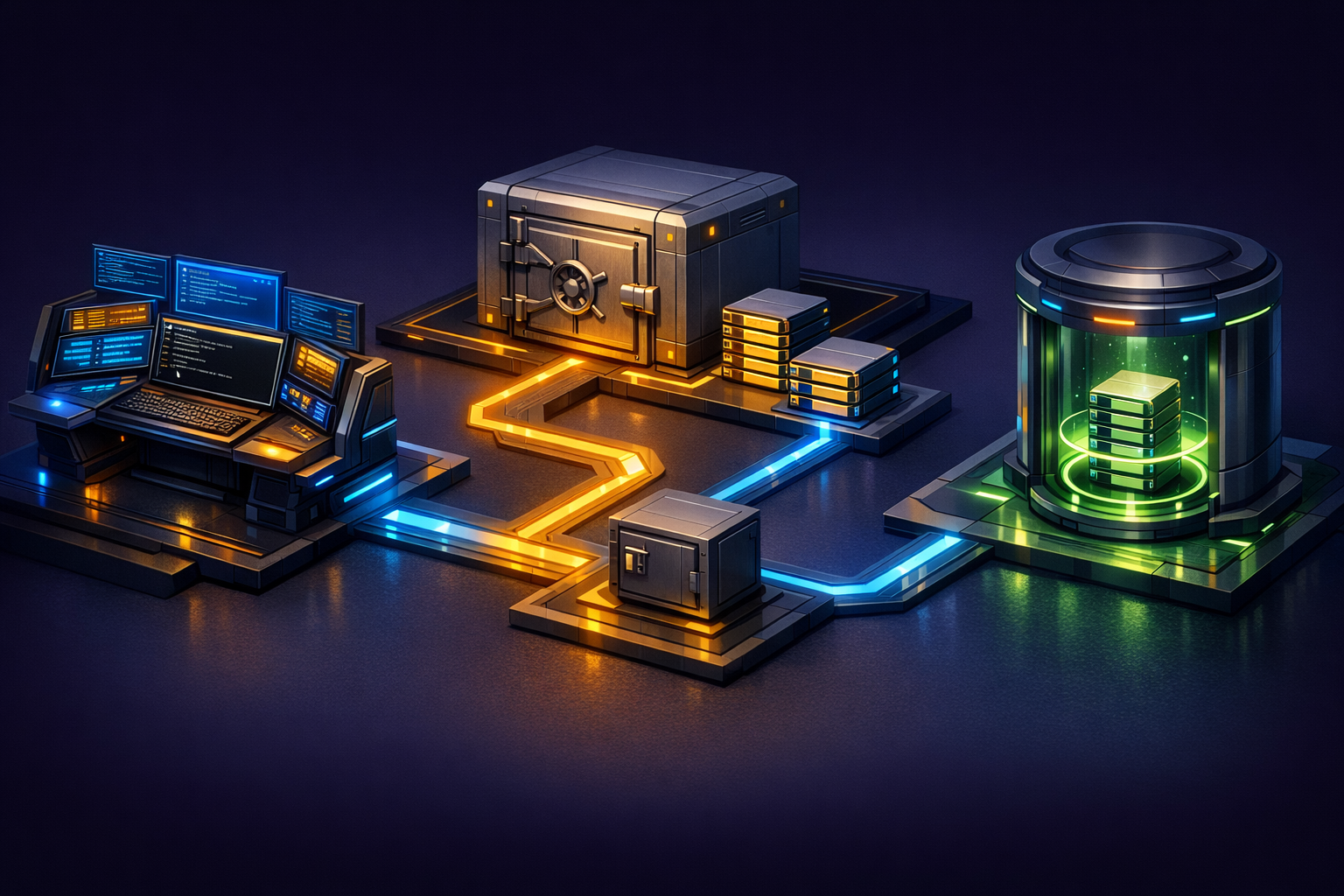
TL;DR: The best backup habit is tied to moments of risk—before updates, before config changes, and at the end of each work week—not vague promises like "I should do this weekly."
Here is the part most guides miss: backups fail as a habit when they are too abstract. "I will remember later" is not a system. You need trigger moments.
Any time OpenClaw is about to change versions, create and verify a backup first. This is especially true when release notes mention configuration changes, storage updates, or CLI modifications.
Your checklist:
If you are editing AgentSkills, message routing, or integrations, use config-only mode. It is fast enough that you will actually do it.
That makes the create-then-verify cycle practical for daily experimentation. No ceremony needed—just a quick snapshot.
If you build in bursts, make one clean backup at the end of each week. Keep a simple naming note in a text file next to it, such as:
The well-known 3-2-1 backup rule—keep three copies on two different types of storage with one copy offsite—is not an OpenClaw-specific feature, but it remains one of the most useful backup habits around.
A simple version for vibe coders:
| Scenario | Minimum Backup Habit | Better Backup Habit |
|---|---|---|
| Solo builder on laptop | One local verified backup before changes | Local verified backup plus private cloud copy |
| Small team sharing a workspace | One shared backup folder | Shared backup plus one restricted admin copy |
| Client demo or launch week | Backup before each major change | Backup before each change plus end-of-day archive |
If you want automated backups without getting too technical, ask your AI coding tool to help create a simple scheduled task. Be explicit that you want it explained in plain English and reviewed for safety.
Paste this into Cursor, Replit, Bolt, or your tool of choice:
Help me create a simple automated OpenClaw backup routine on my computer. I want it to run once every evening, save backups into a folder named OpenClaw-Backups, keep the newest 7 backups, and verify each backup after creation. Explain every step in plain English. Do not assume I know terminal commands. Warn me before suggesting anything that exposes backup files to other users on my computer.TL;DR: Recovery works best when you know which backup is recent, verified, and taken before the exact change that caused the problem.
Three "save the day" scenarios:
An integration worked yesterday and fails today. First question: did the failure begin right after an update? If yes, reach for your newest verified full backup from before the update.
This is where config-only backup shines. Restore the last known good settings snapshot rather than rolling back everything.
Pick the newest verified backup that matches a known good moment. This is why date-sorted archive naming matters so much. In a messy folder, recovery is guessing. In a cleanly sorted folder, recovery is selection.
A good restore workflow:
Troubleshooting common issues:
The three pillars of reliable recovery: recent backups, verified backups, and understandable file names.
TL;DR: Backup files can contain sensitive settings, so treat them like house keys—not like harmless zip files.
This is the uncomfortable part. Backup security is not optional.
A backup can contain configuration details that help your setup run. Depending on how you use OpenClaw, that may include service settings, integration details, and other sensitive information. Even if the backup does not look dramatic, it may still be valuable to an attacker or embarrassing if shared.
That means:
The National Institute of Standards and Technology (NIST) recommends protecting stored sensitive data with access control and encryption. In plain English: keep backups in places only the right people can open, and use encrypted storage when possible.
If you ask an AI assistant for help with backups, tell it clearly: "Do not suggest storing sensitive backup files in public repositories, public links, or shared folders without access control." That one sentence prevents a surprising amount of bad advice.
If security is your main concern, go deeper with the Vibe Coder Security series. Backup files are part of your attack surface whether you think of them that way or not.
openclaw backup create generates the backup archive. openclaw backup verify checks whether that archive appears intact and usable. Run them back to back so you know your safety copy is real before you need it.
Use config-only backup when you are changing settings, prompts, integrations, or agent behavior—but not the whole system. Use a full backup before upgrades, storage changes, or anything large enough that you might want a complete rollback.
Recovery is stressful, and people pick the wrong file when names are messy. Date-friendly naming helps your file browser sort backups chronologically, making it much easier to find the last known good snapshot without second-guessing.
Yes. Ask your AI coding tool to help you create a scheduled task that runs backup creation and verification, saves to a dedicated folder, and retains only a limited number of recent backups. Review every step before enabling it.
They can be, if the storage is private and access is tightly controlled. The risk is not "cloud" itself—it is weak sharing settings, broad access, and forgetting that backups may contain sensitive configuration data.
openclaw backup create snapshots your setup before risky changesopenclaw backup verify is the confidence check most people skip and later regretThe best backup system is the one you will actually use when you are tired, busy, or about to click "update." OpenClaw v2026.3.8 moves things in the right direction by making creation, verification, and date sorting simpler for everyday users—not just power users.
Try this today: make one full backup, verify it, and put it somewhere private that you can find again. Then make one config-only snapshot before your next settings change. Come back tomorrow, and share this with someone who uses OpenClaw.
Tomorrow we will walk through a dead-simple restore drill so you can practice recovery before you actually need it.
Discover more content:
